Install button
McpInstallButton is a dropdown that lists MCP clients, each with a copyable command or config for your endpoint. The navbar on this site has one.
| Light mode | Dark mode |
|---|---|
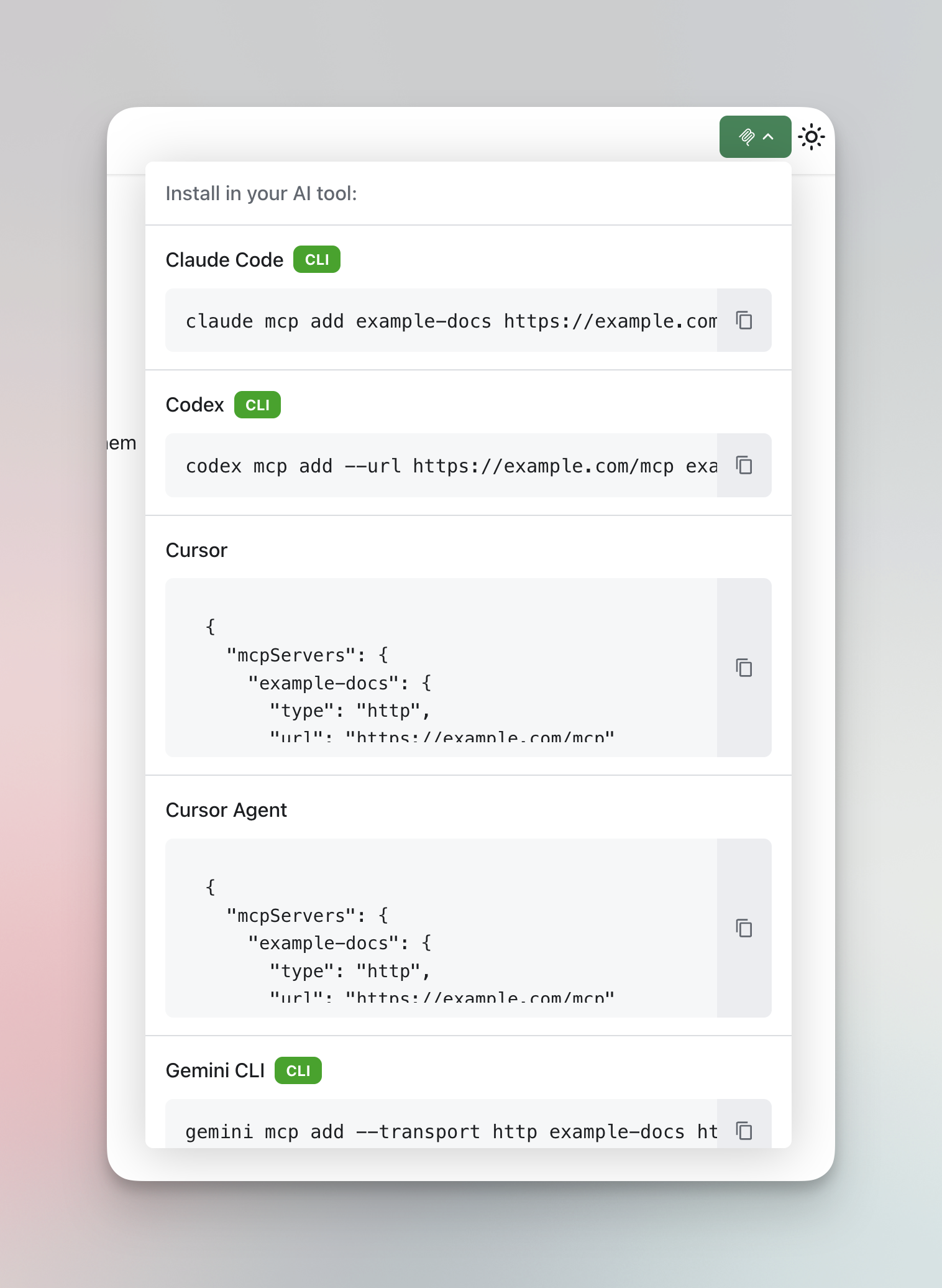 | 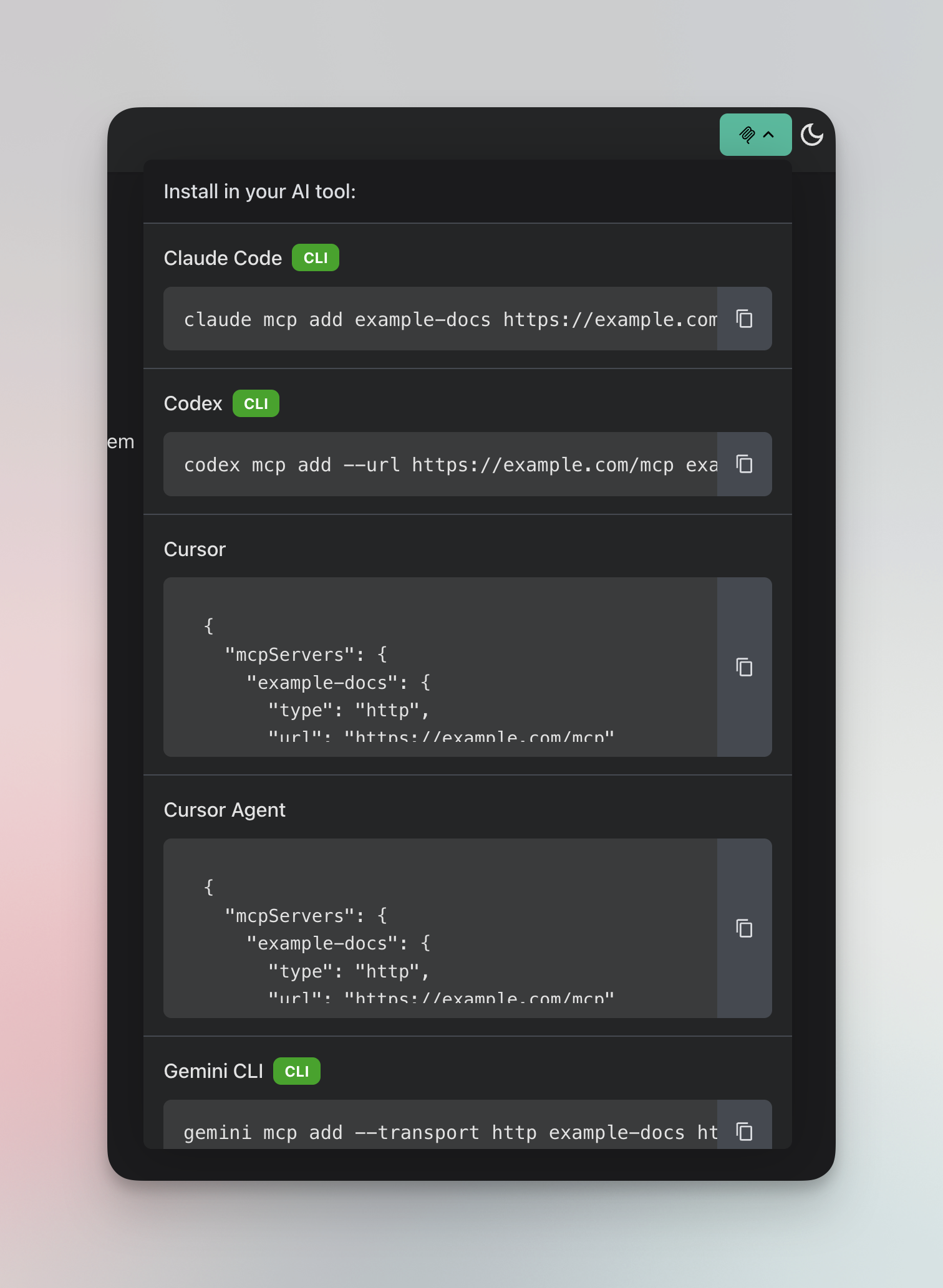 |
Add it to the navbar
Docusaurus navbar items are configured in themeConfig, so register the button as a custom navbar item type. This takes two small files.
1. Wrap the button in a navbar item component:
import React from 'react';
import { McpInstallButton } from 'docusaurus-plugin-mcp-server/theme';

export default function McpInstallNavbarItem({ mobile }) {
  // The dropdown is built for the desktop navbar; hide it in the mobile sidebar.
  if (mobile) {
    return null;
  }
  // navbar__item hides it on narrow screens along with the other right-hand items.
  return (
    <div className="navbar__item">
      <McpInstallButton label="Install MCP" />
    </div>
  );
}
2. Register it by adding src/theme/NavbarItem/ComponentTypes.js, which extends the theme's navbar item types:
import ComponentTypes from '@theme-original/NavbarItem/ComponentTypes';
import McpInstallNavbarItem from './McpInstallNavbarItem';

export default {
  ...ComponentTypes,
  'custom-mcpInstall': McpInstallNavbarItem,
};
3. Use it in docusaurus.config.js:
themeConfig: {
  navbar: {
    items: [
      // ...your other items
      { type: 'custom-mcpInstall', position: 'right' },
    ],
  },
},
With no props, the button reads the endpoint URL and server name from the plugin, so it always matches your server.url and server.name.
Use it anywhere else
The button is a regular React component, so it also works in MDX pages and your own components:
import { McpInstallButton } from 'docusaurus-plugin-mcp-server/theme';

function NavbarItems() {
  return <McpInstallButton serverUrl="https://docs.example.com/mcp" serverName="my-docs" />;
}
Props
| Prop | Type | Default | Description |
|---|---|---|---|
serverUrl | string | from the plugin | MCP endpoint URL |
serverName | string | from the plugin | Server name used in the generated configs |
label | string | none | Button label. Without one, the button shows only the MCP icon |
headerText | string | "Choose your AI tool:" | Text at the top of the dropdown |
className | string | "" | Extra CSS class |
clients | ClientId[] | every client that supports HTTP | Which clients to list, for example ['claude-code', 'cursor', 'vscode'] |
The client configs come from @gleanwork/mcp-config-schema. Connecting AI tools shows what they look like.